MCP Tools
The Credible consumption MCP server — connecting custom agents, and the tool reference for each endpoint
MCP (Model Context Protocol) is the open standard agents use to connect to tools — and Credible's MCP tools are the same get_context and execute_query every Credible surface runs, available to any agent you build. They use the Credible AI Analytics Engine to ground any LLM or agent in governed data definitions. When you ask a question, the get_context tool parses your input into semantic phrases and matches each phrase to data entities (dimensions, measures, views) in your data model — searching against the #(doc) descriptions and #(index) annotations declared in your model. Your LLM gets ranked entity matches and Malloy syntax guidance, so it can construct accurate queries without hallucinating field names or misunderstanding your data structure.
This page covers the consumption MCP server used by LLMs, workspace chat, and custom agents. The modeling MCP tools coding agents use to build models — the same open tools Malloy Publisher provides — are served separately and configured automatically; see the VS Code Extension.
On this page:
- The MCP server — the endpoint and how to scope it
- Connecting custom agents — your own applications, authenticated with a Bearer token or a group-scoped API key
- Tool reference — which tools each endpoint exposes, with parameters and responses
Connecting a personal chat client like Claude, Cowork, or ChatGPT? See Connect your Agent. Connecting an IDE or CLI coding agent like Claude Code, Codex, Cursor, Copilot, opencode, or Gemini CLI? See Connect your Coding Agent.
The MCP Server
Use the Credible MCP server URL: https://mcp.credibledata.com/global/
This one URL serves every organization and workspace your account can reach — the server resolves scope from who you signed in as, so it is the URL to hand out everywhere: connectors, plugins, and the Connect AI page in the Credible App. It is also the URL behind Credible's listing in Anthropic's connector directory and the Credible plugin.
Two narrower endpoints exist as deliberate scope-downs, for an agent that should see less than your account can:
- Organization-scoped:
https://<your-org>.mcp.credibledata.com/mcp— every published package you can access in that organization, across all environments - Workspace-scoped:
https://<your-org>.mcp.credibledata.com/mcp/workspace/{workspace_name}— only the packages in that workspace
You do not have to assemble either by hand: Connect AI in the app has an Access control that switches between the three, and the per-client setup steps below it are rendered with whichever URL you picked. Open it from the settings gear in the sidebar, then Connect AI — every role can reach it. A workspace's settings page links into it with that workspace already selected.
Use a scoped URL to keep one assistant's default retrieval narrow — an agent you don't want drifting across environments, or a connection you want pointed at a single workspace. It is not a sandbox and not a permission boundary: every request is authorized against the identity behind it, so scoping changes where a connection starts looking, not what the signed-in account may reach. Handing someone a scoped URL grants them nothing either — they sign in as themselves and see only what they could already see. Note also that scoping targets shared workspaces: your personal My Workspace is not a workspace you can narrow a connection to.
One thing a scoped URL cannot do is drive a packaged install. The Claude plugin and the connector-directory listing ignore a pasted URL and connect to everything your account can reach, so Connect AI drops them the moment you narrow and shows you how to add the server by URL instead.
Connecting Custom Agents
The MCP server accepts the same two authentication schemes as the REST APIs:
- Bearer token — Acts as the signed-in user, with their permissions. This is what the OAuth flow in MCP clients produces, and you can use it directly for interactive testing or scripts run by a person:
Authorization: Bearer <access-token>- API key — Acts as a group. For custom agents and services — anything running server-to-server, where an OAuth sign-in flow isn't available — create a group-scoped key by following Create an API Key:
Authorization: ApiKey your-api-keyTesting with curl
The examples below use the organization-scoped URL, because a custom agent authenticating with a group API key is exactly the case where you want the narrower scope. You can verify your connection with curl before integrating with your agent framework. The examples use an API key; substitute Authorization: Bearer <access-token> to test as yourself. First, initialize a connection to validate your credentials:
source .env && curl -X POST \
  -H "Authorization: ApiKey ${MCP_API_KEY}" \
  -H "Content-Type: application/json" \
  -d '{
    "jsonrpc": "2.0",
    "id": 1,
    "method": "initialize",
    "params": {
      "protocolVersion": "2024-11-05",
      "capabilities": {},
      "clientInfo": {
        "name": "test-client",
        "version": "1.0.0"
      }
    }
  }' \
  https://<your-org>.mcp.credibledata.com/mcp | jq
Then list the available tools:
source .env && curl -X POST \
  -H "Authorization: ApiKey ${MCP_API_KEY}" \
  -H "Content-Type: application/json" \
  -d '{
    "jsonrpc": "2.0",
    "id": 2,
    "method": "tools/list",
    "params": {}
  }' \
  https://<your-org>.mcp.credibledata.com/mcp | jq
This should return the tool list for whichever endpoint you called — see the table below.
Tool Reference
get_context and execute_query are the pair that does the work on every endpoint. What sits alongside them depends on which URL you connected to, because the two endpoints solve different problems: the global URL carries no organization in the hostname, so the agent has to be able to ask what it can reach and to fetch the analysis guides itself.
| Tool | Global (mcp.credibledata.com/global/) | Organization-scoped (<your-org>.mcp.credibledata.com/mcp) |
|---|---|---|
get_context | ✅ | ✅ |
execute_query | ✅ | ✅ |
search_malloy_docs | ✅ | ✅ |
list_workspaces | ✅ | — (the organization is in the hostname) |
get_skill | ✅ | — |
search_credible_docs | — | ✅ |
get_context and execute_query take different parameters on the two endpoints. The global versions carry the scope in the call (organization, workspace) because the hostname doesn't; the organization-scoped versions derive it from the hostname. The sections below document the organization-scoped shapes, with the global differences called out under each.
get_context
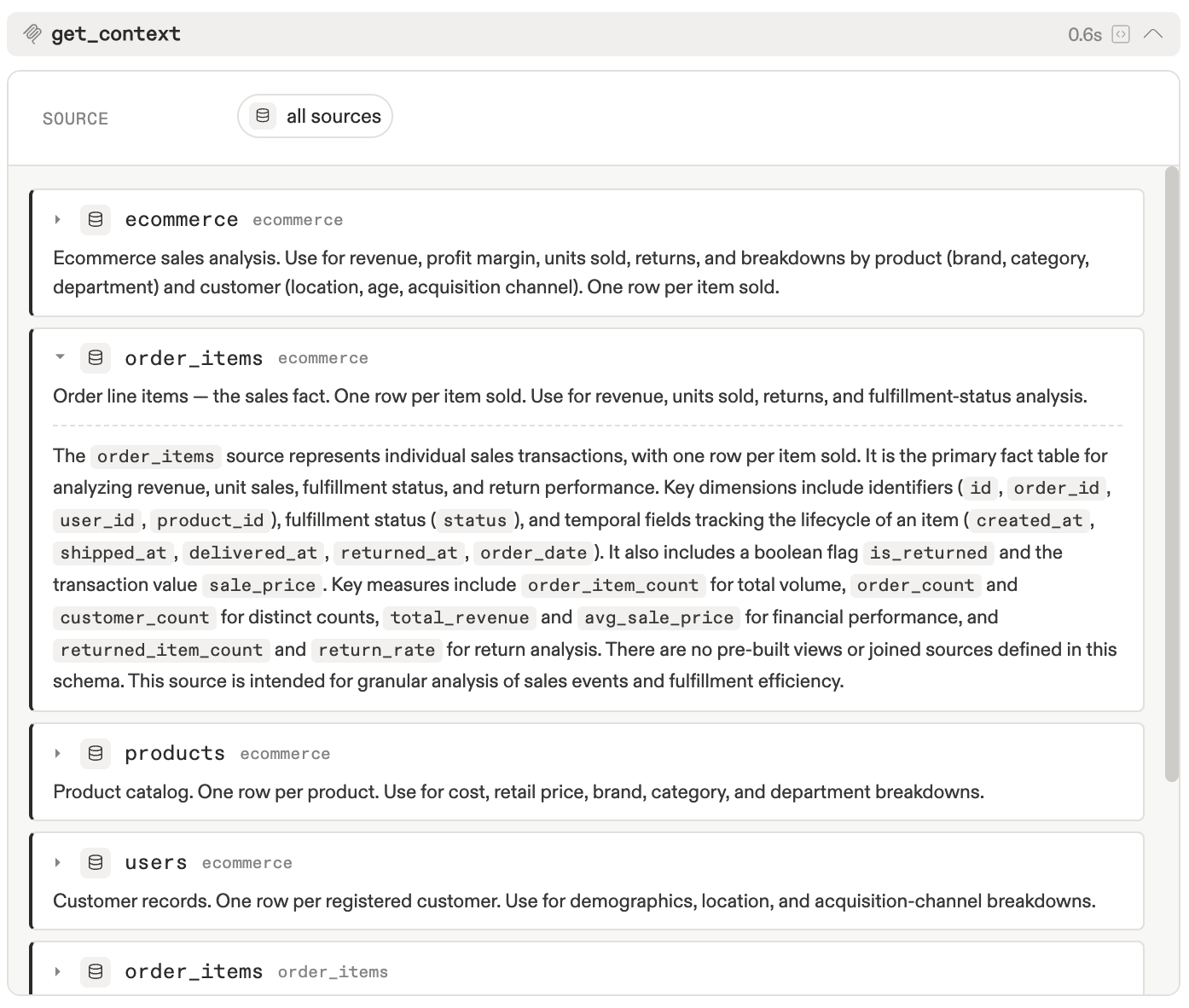
Parses a natural language question into semantic phrases, then matches each phrase to data entities in your published data models. Matches are grounded in the #(doc) descriptions and #(index) annotations declared in your model — the richer your documentation, the better the matches. This is the core retrieval tool powering the Credible AI Analytics Engine.
How it works:
- Phrase extraction — An LLM parses your input into semantic phrases (e.g., "top selling brands by month" becomes phrases like "top selling", "brands", "by month")
- Entity matching — Each phrase is matched against your model's indexed metadata using embedding-based semantic search. This searches
#(doc)descriptions, field names, and#(index)dimensional values. Matching is semantic, not exact — for example, "soccer games" can match a program titled "World Cup Finals" via indexed values and a genre of "Sports" via doc tags - Ranked results — Returns matched entities (dimensions, measures, views, columns) grouped by phrase, sorted by match score
Parameters:
natural_language_query(required): The user's question in natural language (e.g., "What were our top-selling products last year?")environment_name(optional): Environment name to search within. Only use if known from context.package_name(optional): Package name to narrow search scope. Requiresenvironment_name.model_uri(optional): Path to a specific.malloymodel file. Requiresenvironment_nameandpackage_name.source_name(optional): Specific source within a model. Requiresenvironment_name,package_name, andmodel_uri.
Parameter Dependencies: environment_name → package_name → model_uri → source_name
On the global endpoint the call is different, not just wider: organization, workspace, and search_targets are all required, and search_targets is an array of typed targets rather than one natural_language_query string. scopes optionally narrows the search. Call list_workspaces first if you don't already know which organization and workspace to name.
Scope Strategy: Start broad when uncertain, narrow as you discover structure. If results are insufficient, widen scope by removing parameters from right to left.
Response:
sources: Array of matched sources, each containing:phrases: Matched phrases from your input, each with:phrase: The extracted phrase textphrase_description: Extended description of the phraseoverall_score: Match confidence scoreentities: Matched data entities (dimensions, measures, views, columns) withname,field_type,data_type,description,score,match_reason, andvalues(for dimensions with indexed values)
next_steps: Instructions for writing Malloy queries using the returned entitiesmalloy_documentation: Malloy syntax reference and common error patterns
Example Request:
curl -X POST "https://your-org.mcp.credibledata.com/mcp" \
  -H "Content-Type: application/json" \
  -H "Authorization: ApiKey YOUR_API_KEY" \
  -d '{
    "jsonrpc": "2.0",
    "id": 1,
    "method": "tools/call",
    "params": {
      "name": "get_context",
      "arguments": {
        "natural_language_query": "What are the top 10 products by sales?",
        "environment_name": "your-environment"
      }
    }
  }'
execute_query
Executes Malloy queries against published data models and returns JSON results.
Parameters:
environment_name(required): Environment containing the modelpackage_name(required): Package containing the modelmodel_uri(required): Path to the.malloymodel filequery(optional)*: Custom Malloy query code. Do NOT providesource_namewhen using this.query_name(optional)*: Name of predefined query/view to executesource_name(optional)*: Source name. Required when usingquery_name, omit when using customquery.version_id(optional): Specific package version to query against
*Execution Patterns: Use exactly ONE of:
- Custom query: Provide
queryparameter only - Predefined query: Provide both
query_nameandsource_name
Response: Returns query results as JSON with data, totalRows, executionTime, and metadata
On the global endpoint the parameters name the same things but are spelled differently, and organization joins them: organization, environment, package, and model_path are required, with query, query_name, source, version, filter_params, givens, and expanded optional.
list_workspaces
Global endpoint only. Lists the organizations and workspaces your identity can reach, so an agent connected to the org-agnostic URL can orient itself before its first real call. Optional organization filters to one. On the organization-scoped endpoint there is nothing to choose — the hostname already decided.
get_skill
Global endpoint only. Returns Credible's analysis guides — the same open-source skills that ship in the Claude plugin — over MCP. It exists for the surfaces where skills can't ride along with the tools: a chat client connected through a connector has no plugin mechanism, so the guides have to be fetchable. Called with no arguments it lists what's available; skill_name returns one.
search_malloy_docs / search_credible_docs
Both take a single query string and return matching documentation — Malloy language reference for the first, Credible product docs (including this page) for the second. search_malloy_docs is on both endpoints; search_credible_docs is currently on the organization-scoped endpoint only.
Error Handling
The server returns standard MCP error responses for invalid requests, authentication failures, and query execution errors. Refer to the MCP specification for error code details.
Have custom authentication requirements? Contact us to discuss your use case.