Connect a Database
Add secure, managed database connections to your environment
A connection is a secure, managed link to a database or warehouse. Connection configurations are stored in a Credible environment, and every package in that environment can use them. Credentials never leave the Credible service — all access, for modeling and for serving, is proxied through the engine, making Credible a secure perimeter around your databases.
Credible supports BigQuery, Snowflake, PostgreSQL, Trino, Databricks, MySQL, DuckDB, MotherDuck, and DuckLake — and, through DuckDB, flat files in object storage: CSV, Parquet, and JSON in GCS, S3, or Azure Data Lake, read in place. Spreadsheets (.xlsx) and CSV or Parquet files can also ship inside a package as embedded data. You don't need a warehouse to start: connect data where it already lives, and the engine brings the query engine and the storage.
Prerequisites
- Admin access to an organization, in order to create environments and connections. When you create your own organization you're its admin; if you've been added to an existing one, ask your organization administrator to set connections up for you.
Setup Process
Credible App (Recommended)
- Access your organization at
https://your-org.app.credibledata.com - Select your environment from the left sidebar under Packages & Connections
- Click "+ Add Connection" in the Connections section
- Choose your data source type and fill in the connection details:
Connection names cannot contain spaces or hyphens. Use underscores instead
(e.g., my_connection).
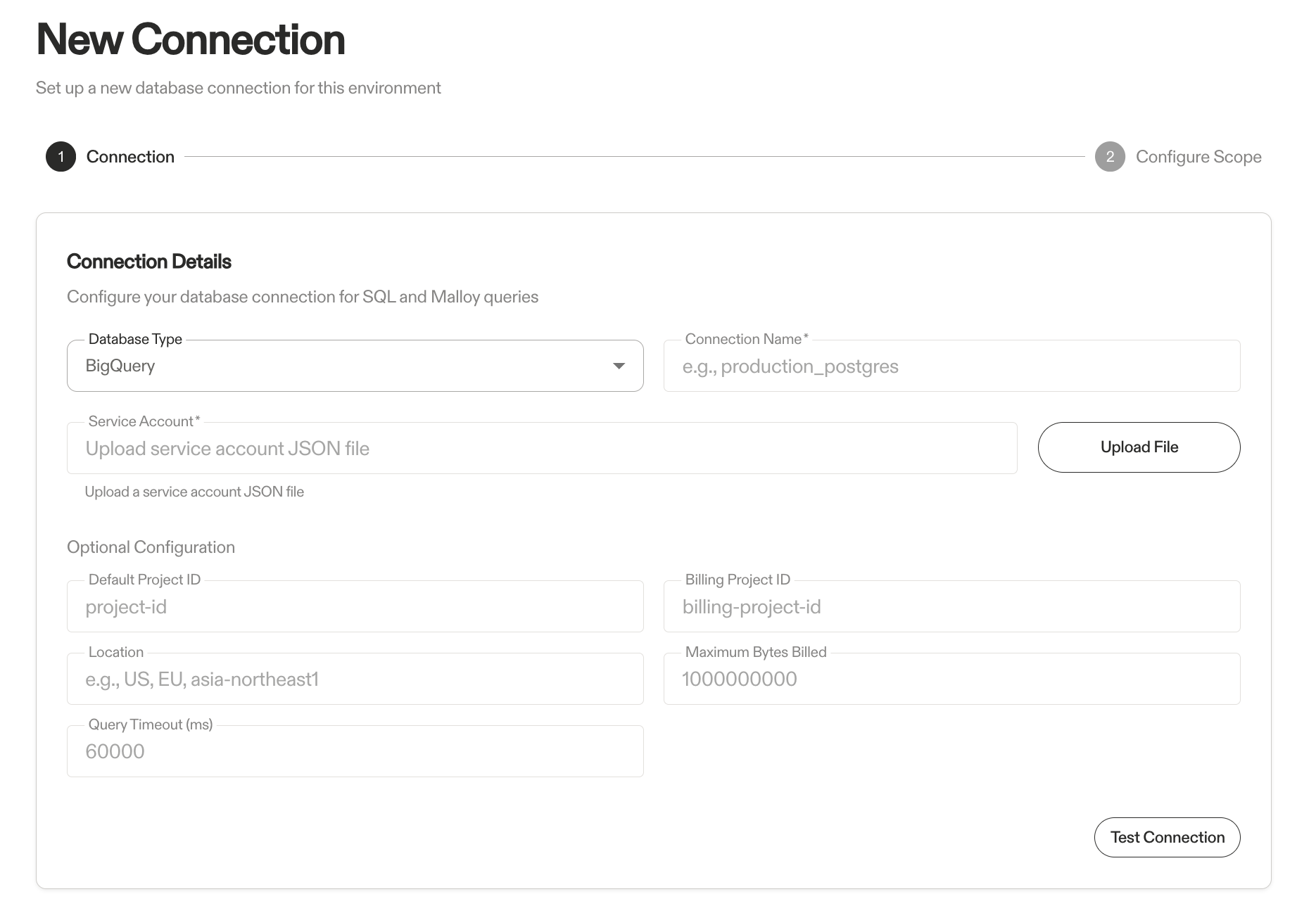
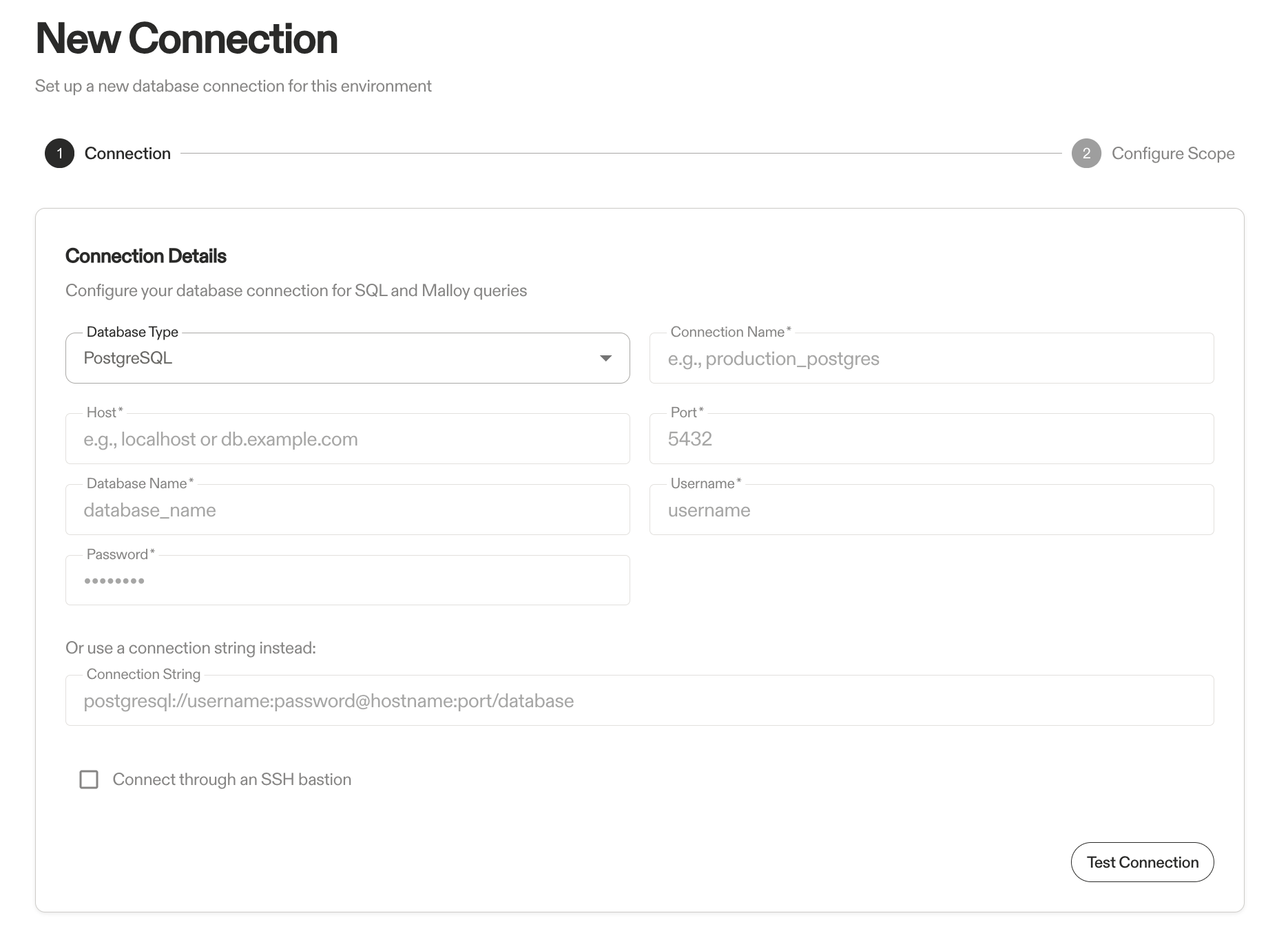
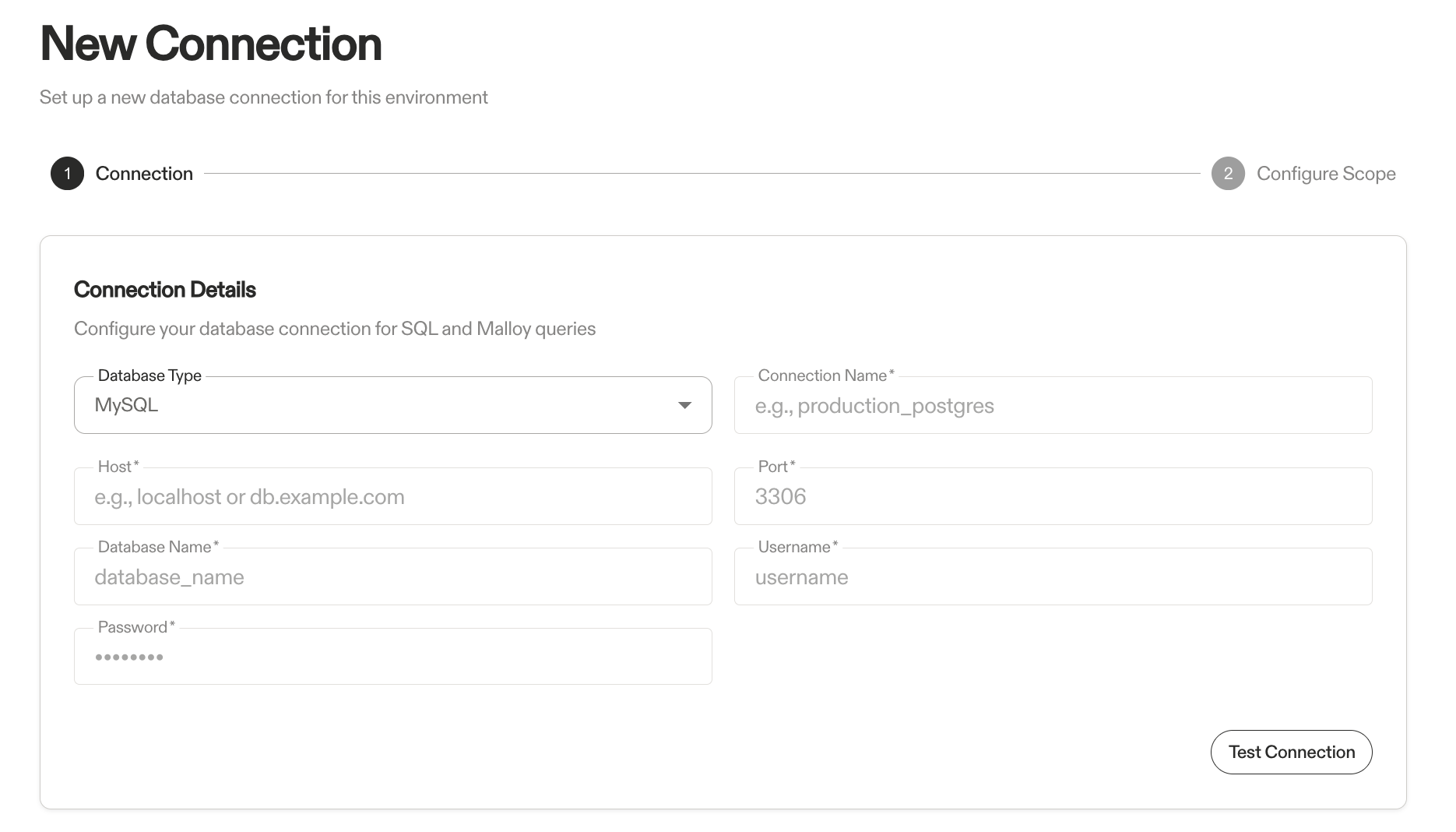
Required:
- Connection name
- Host, Port, Database Name, Username, Password — or a connection string instead of the individual fields
Optional:
- Connect through an SSH bastion, for a database with no public route
On Supabase, use the session pooler — host aws-0-<region>.pooler.supabase.com, port 5432, username postgres.<project-ref>. The Direct Connection host is published only on IPv6 and cannot be reached.
See the PostgreSQL connection reference for Supabase setup, SSL and certificate errors, and a troubleshooting table.
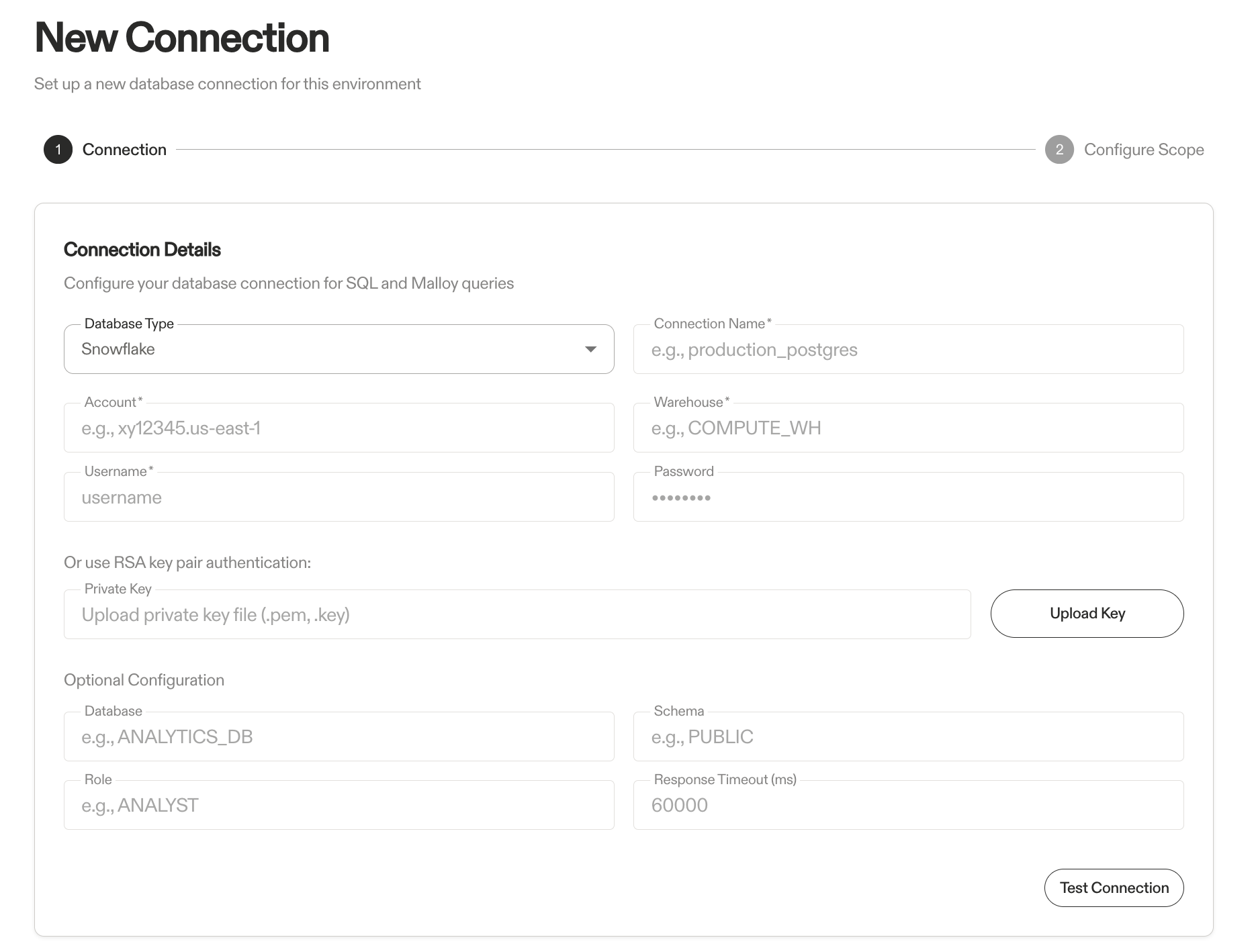
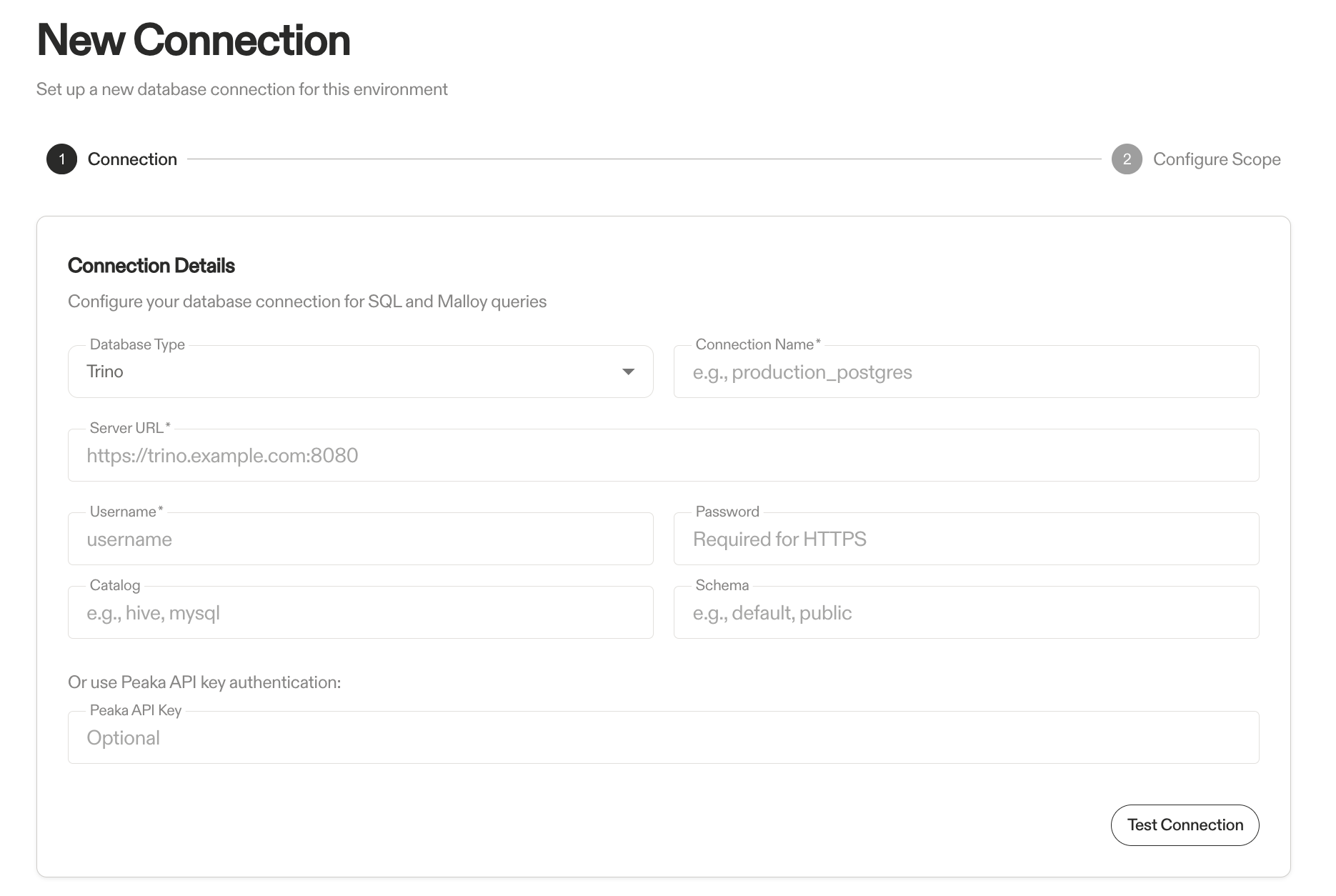
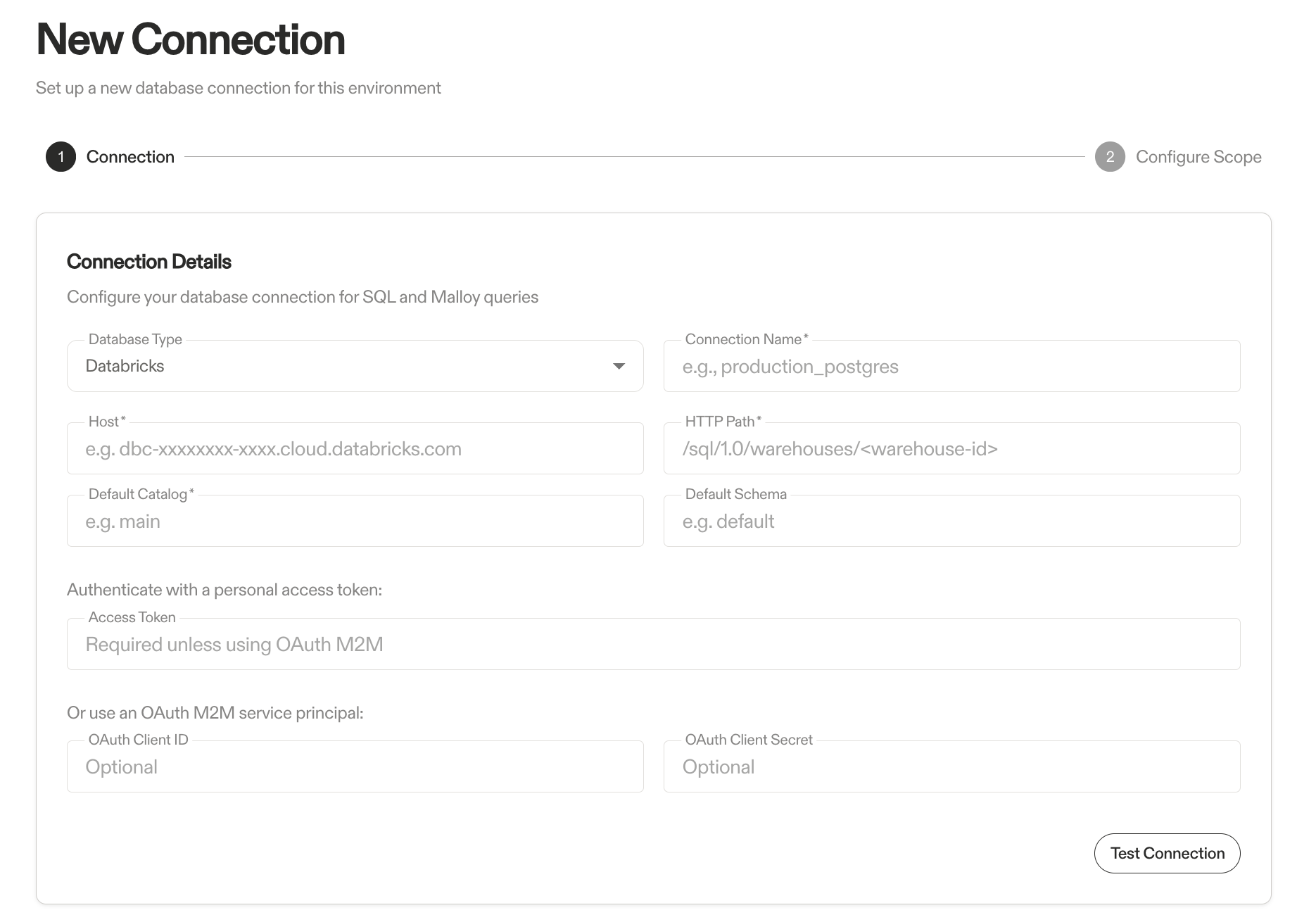
Required:
- Connection name
- Host (e.g.,
dbc-xxxxxxxx-xxxx.cloud.databricks.com) - HTTP Path (e.g.,
/sql/1.0/warehouses/<warehouse-id>) - Default Catalog (e.g.,
main)
Authentication (choose one):
- Personal Access Token - paste a Databricks PAT
- OAuth M2M - service principal Client ID + Client Secret
Optional:
- Default Schema (e.g.,
default)
See the Databricks connection reference for details on creating a SQL warehouse, generating a PAT, or configuring an OAuth M2M service principal.
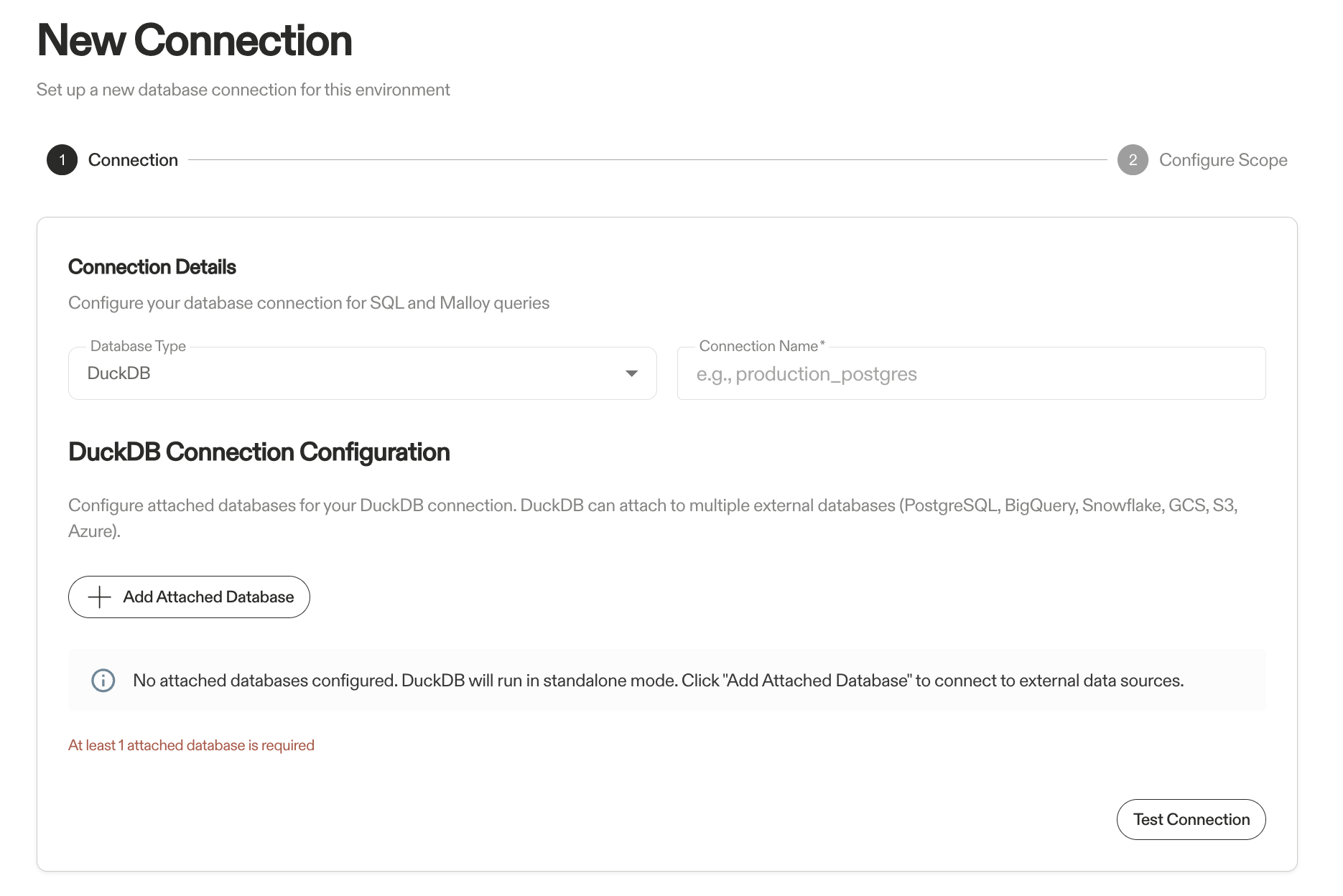
DuckDB runs in-process and can attach to external databases (PostgreSQL, BigQuery, Snowflake) and object storage (GCS, S3, Azure). Files in a bucket — CSV, Parquet, JSON — are read in place, as a single file, a directory glob (path/*.parquet), or a whole subtree (path/**), and can be joined with the attached databases in one model. With no attached databases it runs in standalone mode — useful for working with embedded data files (CSV, Parquet, .xlsx) included in your packages.
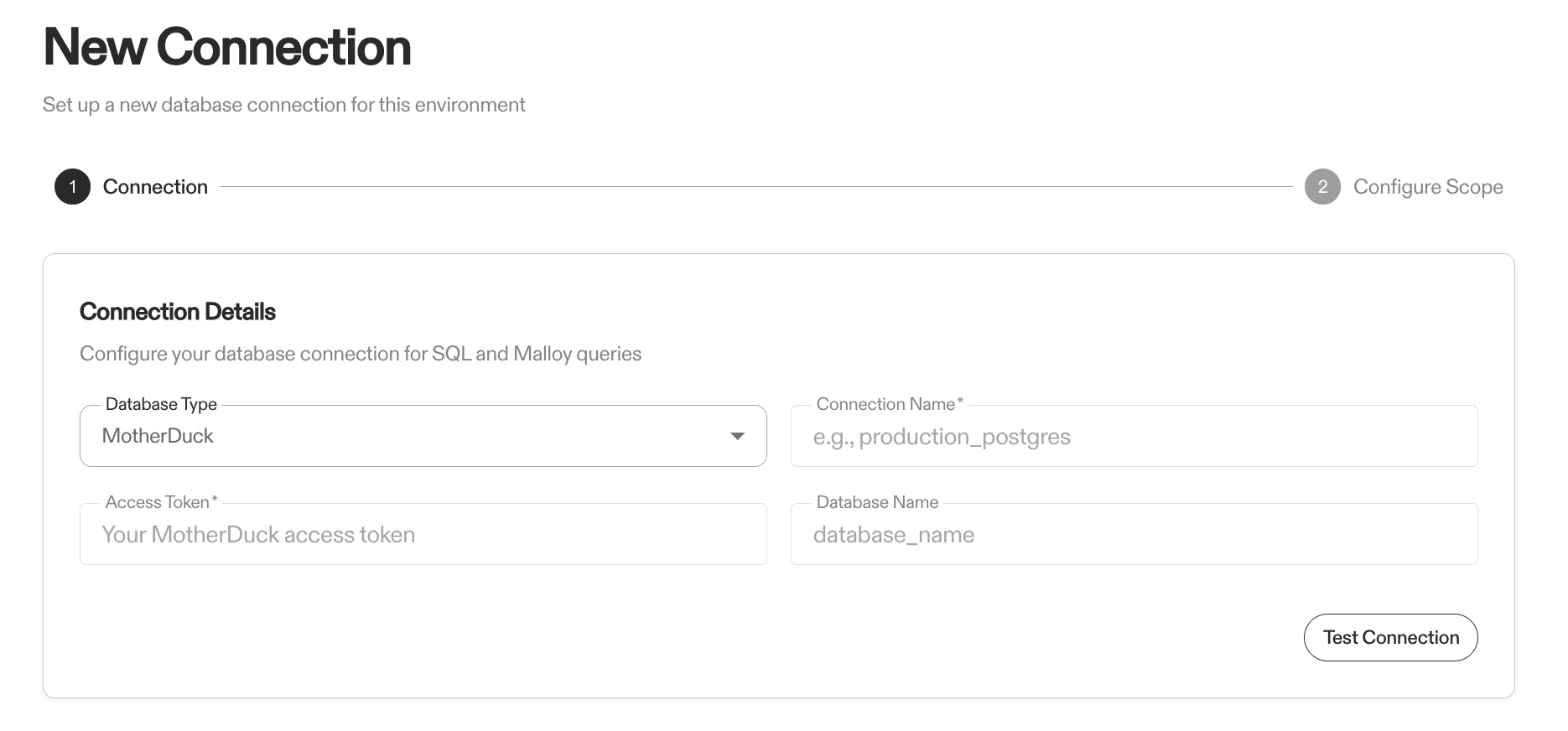
MotherDuck is a serverless cloud analytics platform built on DuckDB. Get your access token from your MotherDuck account settings.
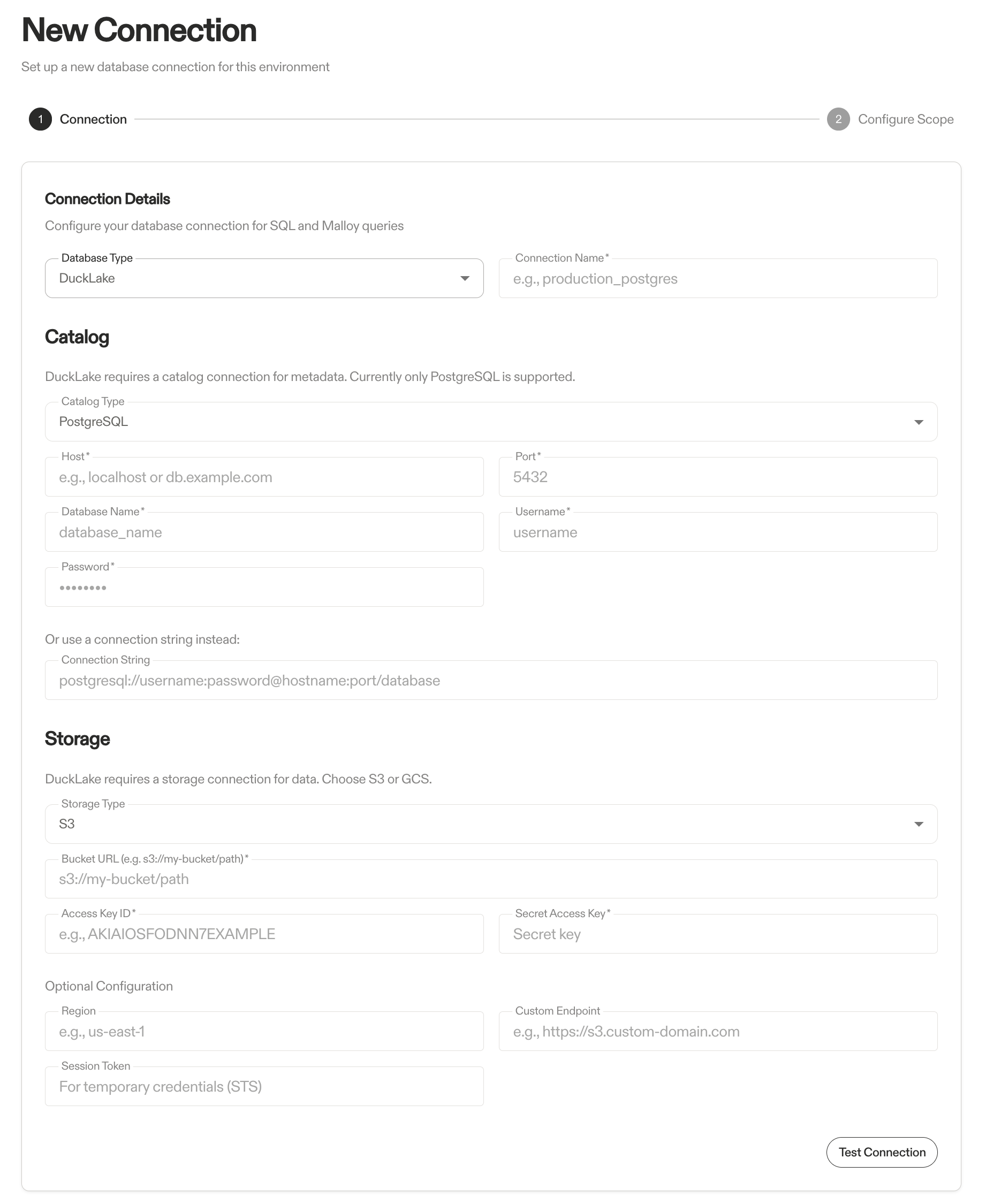
DuckLake needs two backing connections: a catalog for metadata (currently PostgreSQL) and storage for data (S3 or GCS). Configure both, then test the connection.
- Test the connection
- Click Next: Configure Scope
Configure Scope for AI-Assisted Modeling
Next, select which schemas and tables to index for AI-assisted modeling:
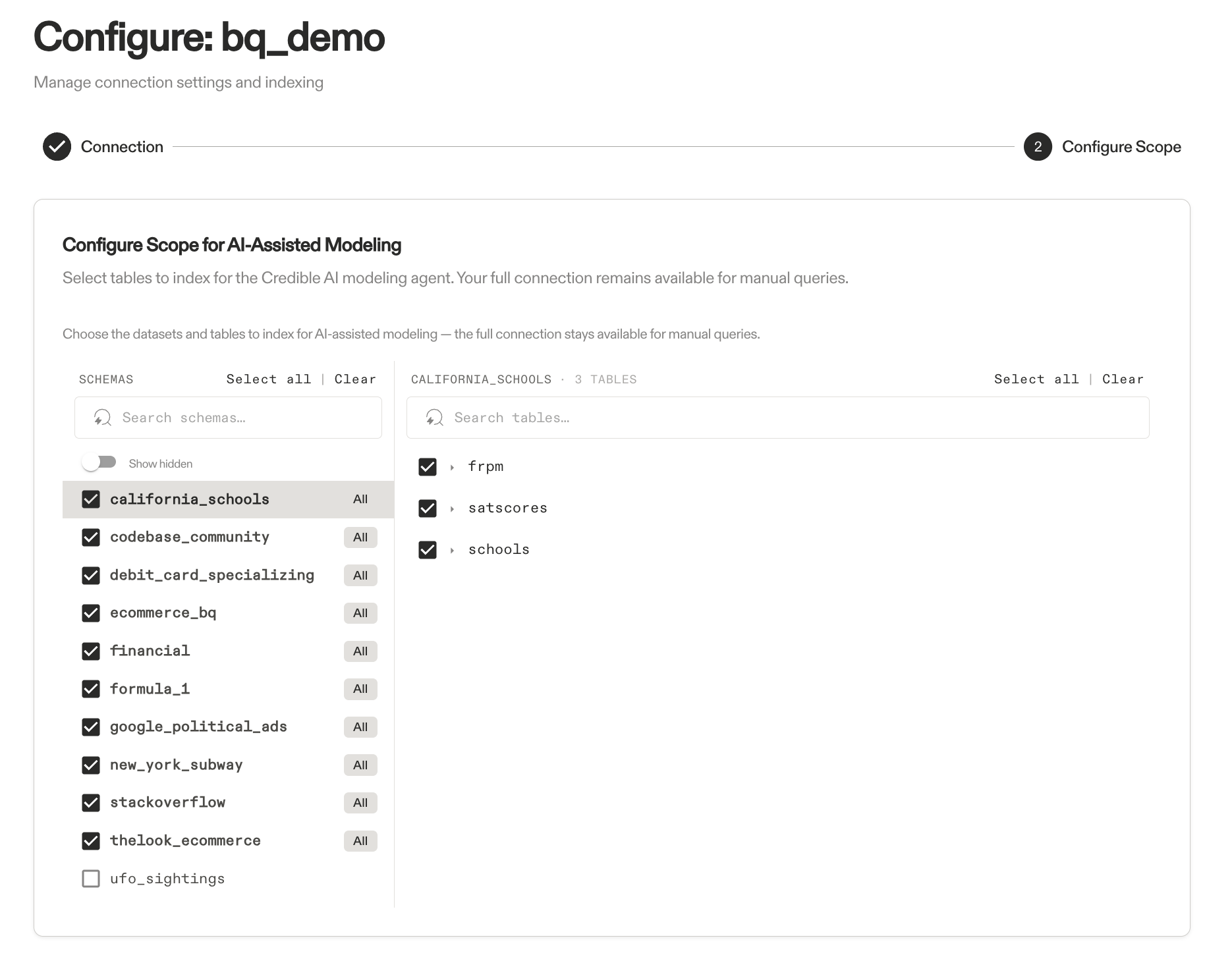
- Browse schemas on the left, select tables on the right
- Use Select All to include all tables in a schema, or pick individual tables
- Check "Do not include any tables for AI-assisted modeling" if you only need the connection for manual queries
These indexing limits apply to AI-assisted model creation:
- 100 tables per schema for metadata indexing
- 25 tables or fewer for automated join inference
You can manually write Malloy models for any size dataset. Published models are indexed separately for analysis.
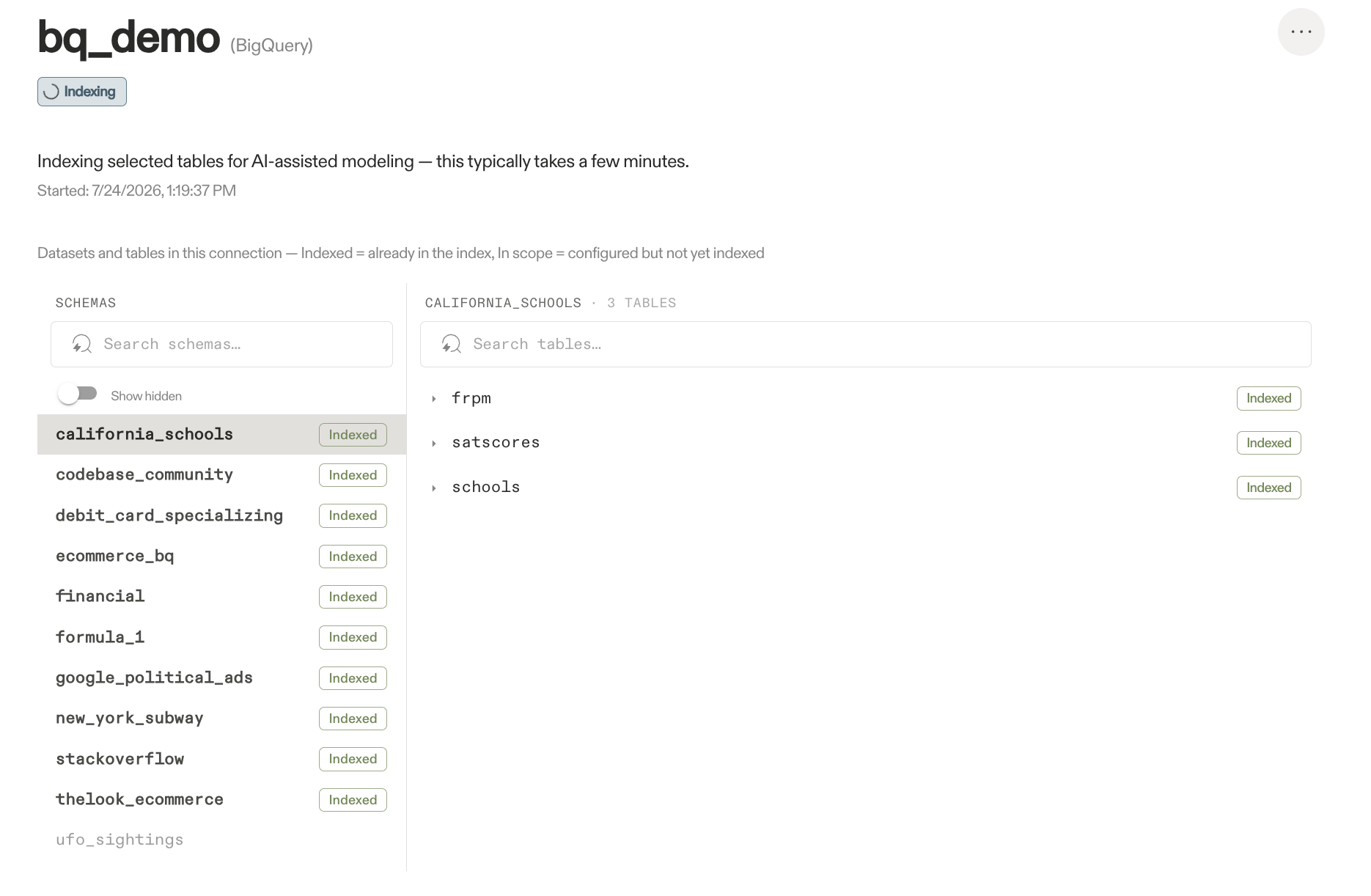
Click Update Connection to save. You'll see an indexing status page confirming the connection is being indexed:
CLI Option
Use the Credible command-line tool for programmatic connection management and automation.
-
Install the CLI:
npm i -g @credibledata/cred-cli -
Login to your organization:
cred login <organizationName> -
Add a connection:
cred add connection <connectionFileName>The connection file should be a JSON file containing an array of connection objects. See the CLI reference for detailed connection file formats and examples.
-
Configure scope (optional): Control which tables are indexed for AI-assisted modeling with scope flags on
cred add connection. Tables are referenced as{dataset/schema}.{table}, and*matches all tables in a schema:# Index only the sales schema and one finance table cred add connection connections.json --include-tables "sales.*,finance.orders" # Index everything except temporary and backup data cred add connection connections.json --exclude-tables "temp_data.*,backup.records" # Create the connection without indexing any tables cred add connection connections.json --skip-indexing--include-tablesand--exclude-tablesare mutually exclusive (and cannot be combined with--skip-indexing).
Scope flags apply at connection creation. To change the scope of an existing connection, edit it in the Credible App (see Configure Scope above).
Next Steps
With your data connected, pick how you want to build models: