Users & Groups
Manage the users and groups in your organization
Manage your organization's users and groups from the Credible App — click Users & Groups in the bottom left of the sidebar. This page covers who is in your organization; for what they can access, see Permissions.
Manage Members
View and manage users in your organization. The Users tab shows all organization members with their email, role, and actions.
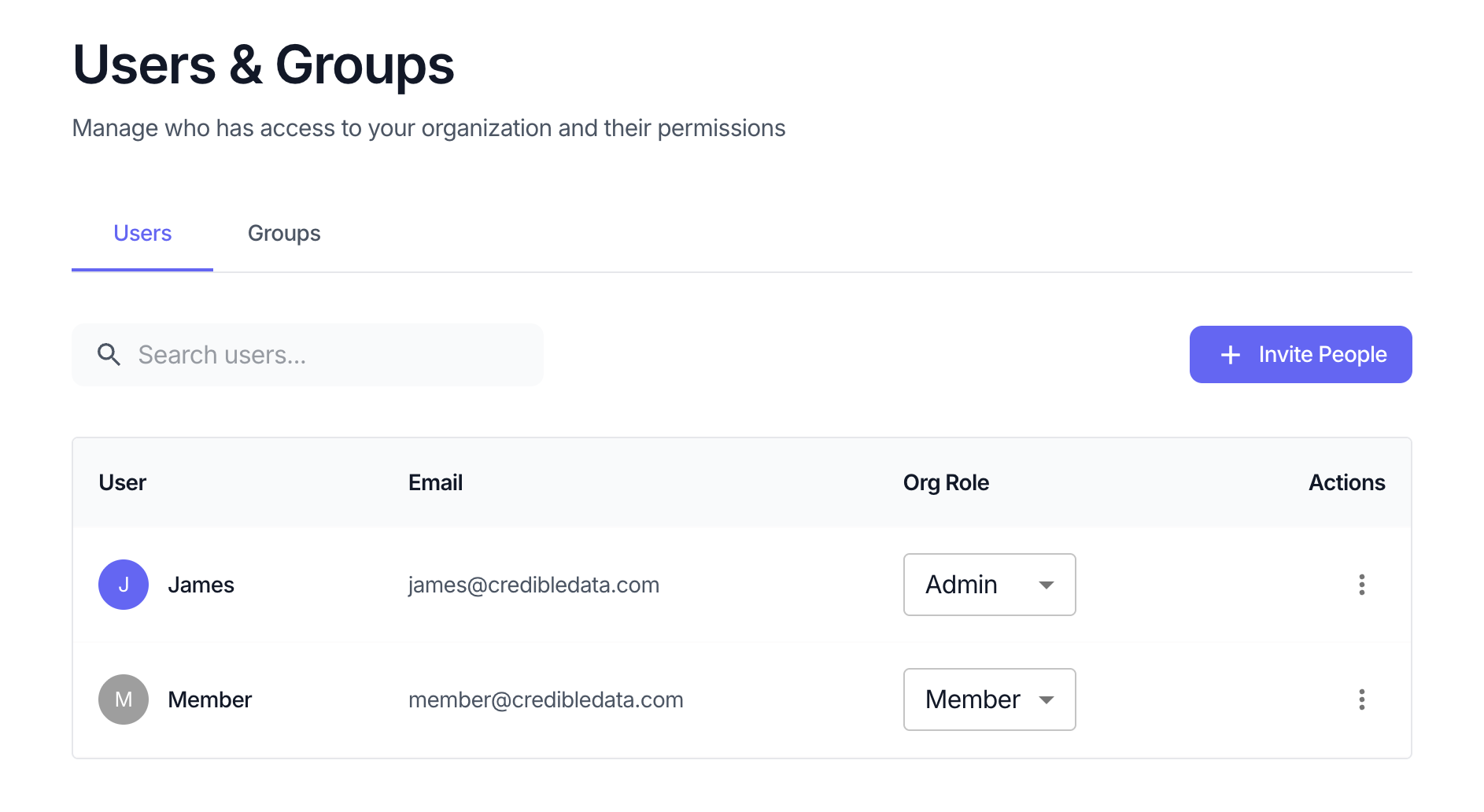
Organization Roles
| Role | Access |
|---|---|
| Admin | Full access to the Credible App — can create environments, manage connections, and administer users and groups |
| Modeler | Can build and publish packages in environments shared with them |
| Member | Can access workspaces shared with them in the Credible App — chat with data, view reports and data apps, and explore models. Can also be granted viewer access to environments and packages |
An organization role sets what a user or group can do overall — access to specific environments, packages, and workspaces is granted separately (see Permissions). A group can hold an organization role too, which is what lets a group access token reach organization-level actions such as creating environments — not only the resources the group has been shared into.
Actions
- Invite — Send an email invitation to add a new user to your organization
- Edit role — Change a user's role between Admin, Modeler, and Member
- Remove — Remove a user from the organization
Manage Groups
Groups let you grant access to many users at once. Permissions covers when to reach for one.
Switch to the Groups tab to view and manage groups. Click a group to view its members and manage membership.
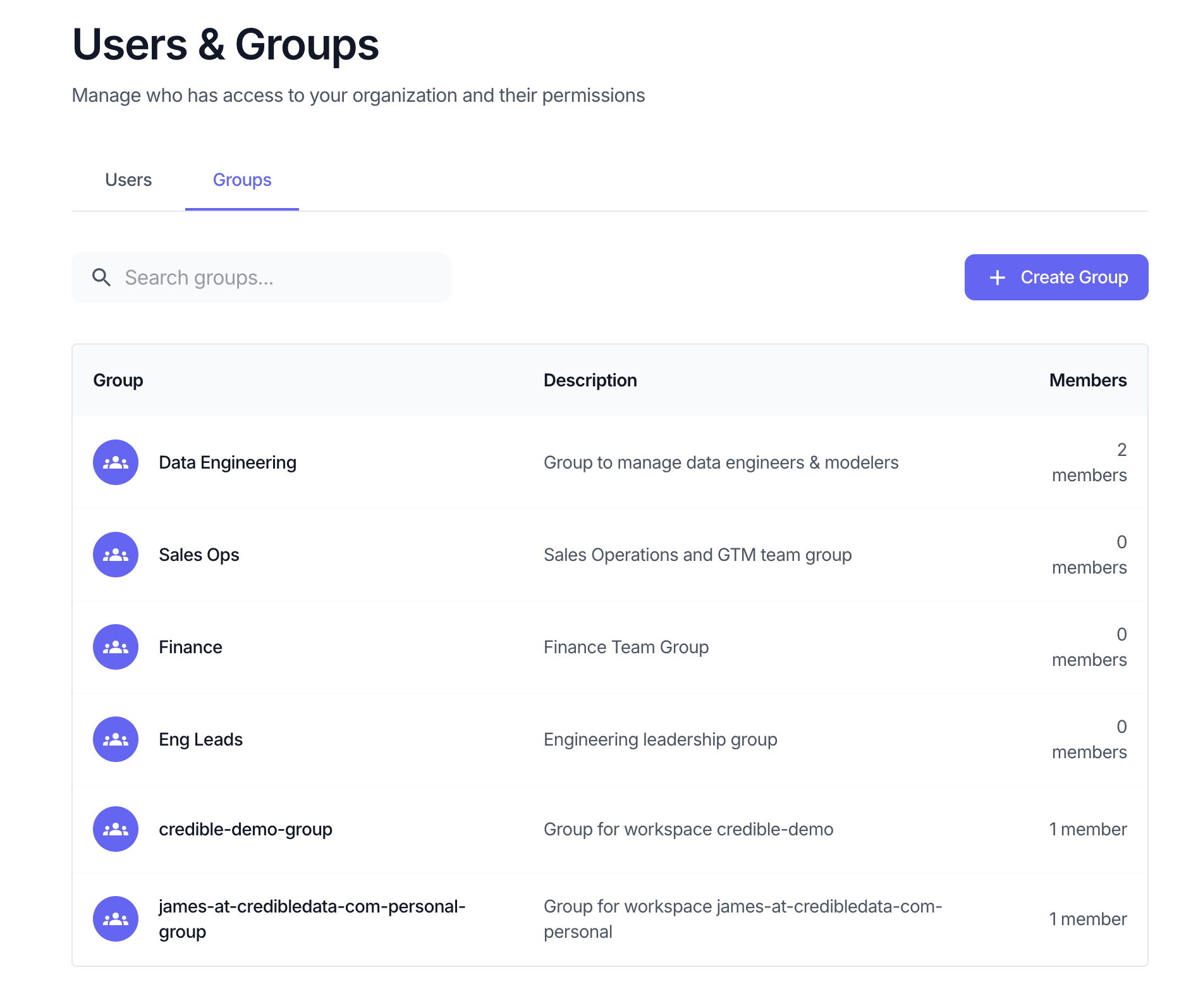
Group Roles
| Role | Access |
|---|---|
| Admin | Can add/remove members and manage group settings |
| Member | Inherits the group's access permissions |
Actions
- Create Group — Create a new group with a name and description
- Add members — Add users or other groups to a group
- Remove members — Remove users or groups from a group
- Delete Group — Remove the group (does not affect individual user accounts)
Group Access Tokens (API Keys)
A group can hold access tokens — API keys that let applications and services act with the group's permissions. Because the key's access is the group's access, you can adjust or revoke what an integration can reach by editing the group, without touching the key itself. Create and manage tokens with the CLI (cred add group-access-token), and see API Access for the full setup.
What a token can reach
A token carries no permissions of its own, so its reach is whatever its group holds when the request is made. Grant the group at the level the integration needs:
| Grant the group | The token can |
|---|---|
| A package role | Read that package |
| An environment role | Work inside that environment — connections, packages, and models |
| The organization Admin role | Everything Admin allows across the organization, including creating new environments |
A group with only environment or package access cannot create environments, and neither can the organization Modeler or Member roles — creating one requires Admin (see Organization Roles above). If your automation provisions environments — Terraform and CI pipelines usually do — the group needs the organization Admin role:
cred add permission group:<group-name> adminSee cred add permission for the environment and package forms, and for revoking a grant.
Because the grant lives on the group and not the key, changing it takes effect immediately for every token that group holds. Revoking the group's permission is the fastest way to cut off a credential.
The organization Admin role is broad: it reaches every environment and package in the organization, can create further group access tokens, and can delete groups. Prefer an environment-scoped grant unless the integration genuinely needs to create environments, and keep a group used by automation separate from groups that include people.